Creating a new Remoting SDK Server
Remoting SDK provides templates to create new Servers using Delphi or C++Builder.
Simply invoke Delphi's New Item dialog, for example by choosing "File|New|Other" from the menu and selecting the "Remoting SDK" folder inside it:
A variety of templates are provided, depending on how you want to host and deploy your server, with the "Combo Service/Standalone" being the most flexible.
Most templates come in two flavors: Code-First and classic RODL-based. Code-First derives the service contract from your code at runtime, while the RODL-based variant uses a .RODL library file; pick whichever fits your workflow. (A few specialized templates – DLL Server, ISAPI/NSAPI Server and Local Application – ship in the RODL-based flavor only.)
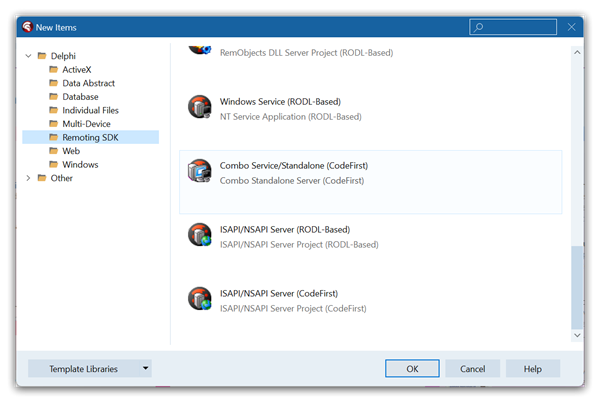
Choice of Templates
What do the different options mean? The Combo Service/Standalone is the most flexible starting point, but you might want to pick a different template for more specialized needs:
- CGI Server – Provides a command-line server to be hosted inside a webserver such as Apache or IIS in classic CGI fashion. Legacy.
- Combo Service/Standalone – Creates a server that can be installed as Windows NT Service and be run standalone as a VCL application (usually for debugging).
- Command Line Server – Creates a simple server project that can be run from the command-line. Useful if you want to target Linux (via FPC) or Mac OS X hosting later on.
- DLL Server – Creates a .dll server project that can be hosted locally inside a client app. Useful for also embedding RO server functionality in a desktop app.
- ISAPI/NSAPI Server – Provides a .dll server to be hosted inside IIS using the ISAPI deployment model.
- Local Application – Creates a project with client and server logic within the same application (usually for later splitting up into client and server).
- VCL Standalone – Creates a server project that can be run standalone as a Windows GUI application on the desktop.
- Windows Service – Creates a server project that can be installed and run as Windows NT Service application only, in head-less mode.
The Combo Service/Standalone essentially combines the capabilities of VCL Standalone and Windows Service into one convenient project, creating one .exe that can be run in either mode.
Creating the Project
Select the "Combo Service/Standalone (CodeFirst)" template and click "OK", and you should see the New project Wizard that will guide you through creating the project:
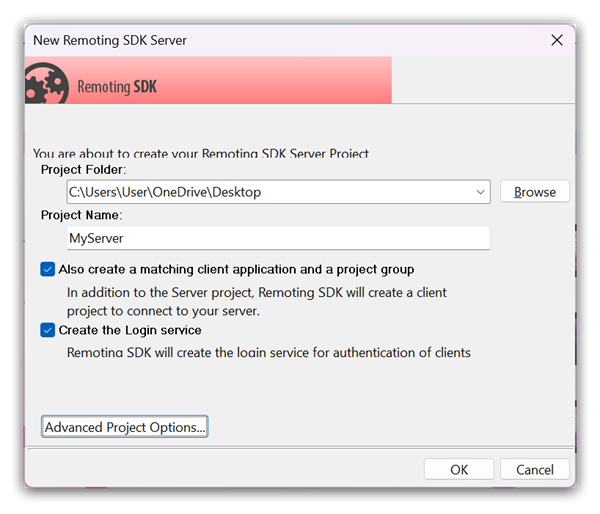
Select a name and destination folder for the new project, then click "OK", and a new project group will be created with your server project, as well as a small test client application:
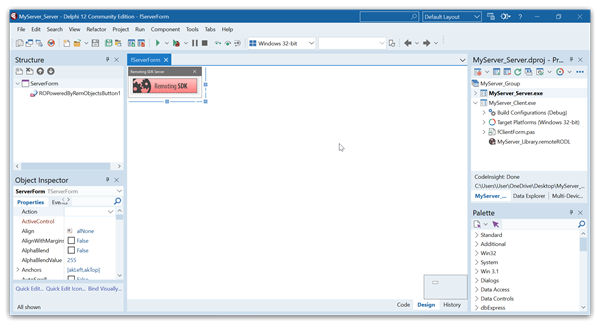
Aside from regular Delphi plumbing code, the server has a few source files (and matching .DFMs) of interest:
fServerDataModule.pas– the heart of the server. This data module hosts the server channel (Server), the message component (Message) and an in-memorySessionManager; itsOnCreatehandler activates the server. For a Code-First server, itsinitializationsection also registers the library name, ID and namespace throughuRORTTIServerSupport– the server itself has no.RODLlibrary file, as the service contract is derived from RTTI at runtime.<ServiceName>_Impl.pas– your service implementation. The service is aTRORemoteDataModuledescendant decorated with Code-First attributes such as[ROService],[RONamespace]and a class-factory attribute ([ROStandardClassFactory]by default);[ROServiceRequiresLogin]is added if you opted for login support. You add your remote methods here, marking each with[ROServiceMethod], and the service is published at the bottom of the unit viaRegisterCodeFirstService(...). The unit also ships with an extensive commented reference of the available attributes and a few examples.fServerForm.pas– a small VCL window shown when the server runs as a standalone desktop application (handy while debugging). Closing it deactivates the server channel.<Project>Server.dpr– the program file. Thanks touROComboService, the same executable can either start head-less in Windows Service mode or, when run normally, show theServerFormas a standalone application. Pass-install/-uninstallto (un)register the Windows Service, or-standaloneto force desktop mode.LoginService_Impl.pas– present only when login support was selected; a ready-to-use login service.
If you also asked for a matching client, the project group additionally contains a small client application (fClientForm.pas). It comes with a <Project>Library.remoteRODL entry that points at the running server (e.g. http://127.0.0.1:8099/Bin); this lets the client import the service contract straight from the live server, so you can test everything right away.
See Code-First for more on defining services in code, and Servers for the available channels, messages and hosting options.